研究室のマルチホスト・マルチGPU監視ソリューション
はじめに
このブログは進化の過程を記録したものであり、参考価値は低いです。下記のプロジェクトを直接確認し、Dockerを使って素早くデプロイすることをお勧めします。
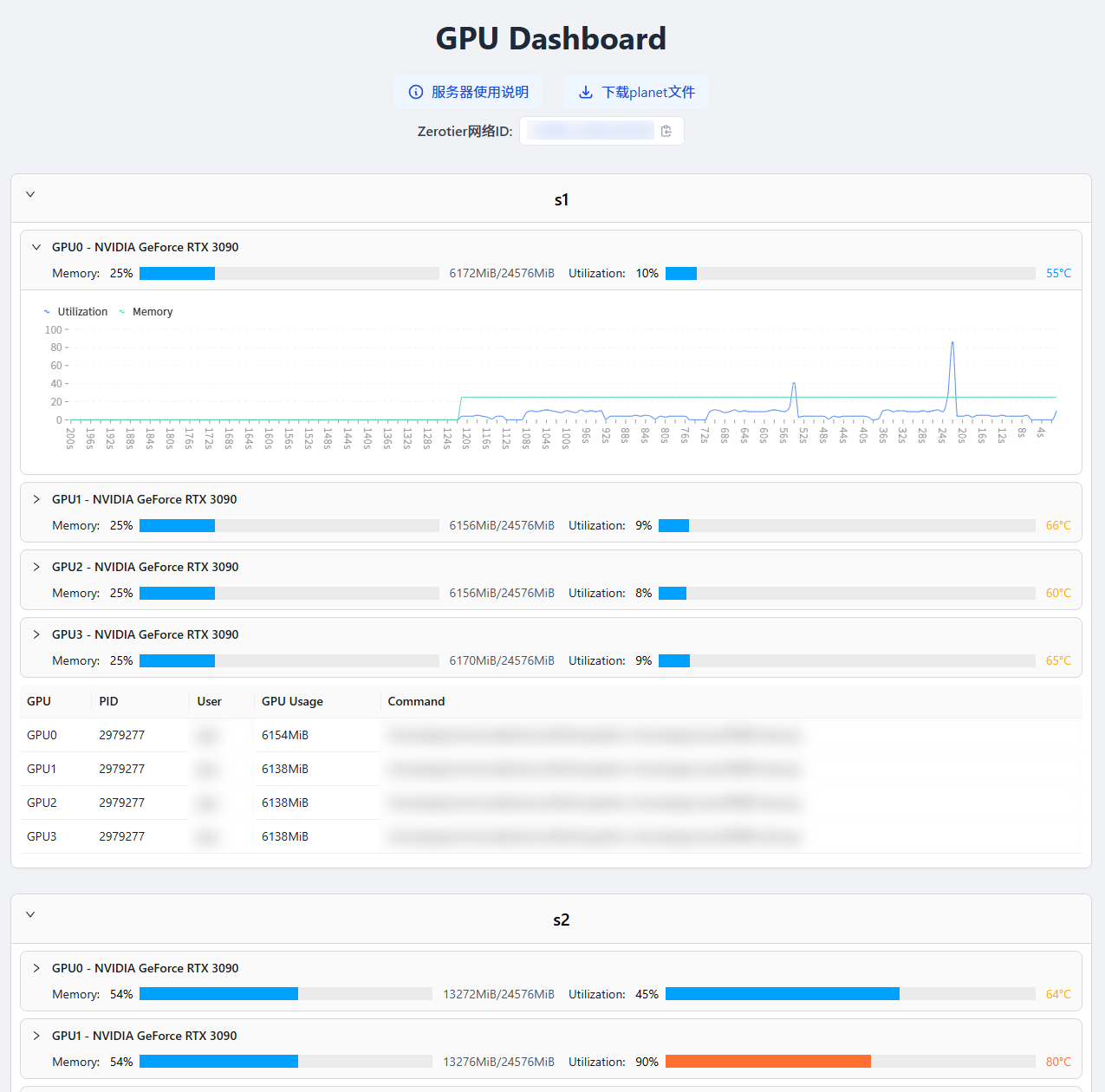
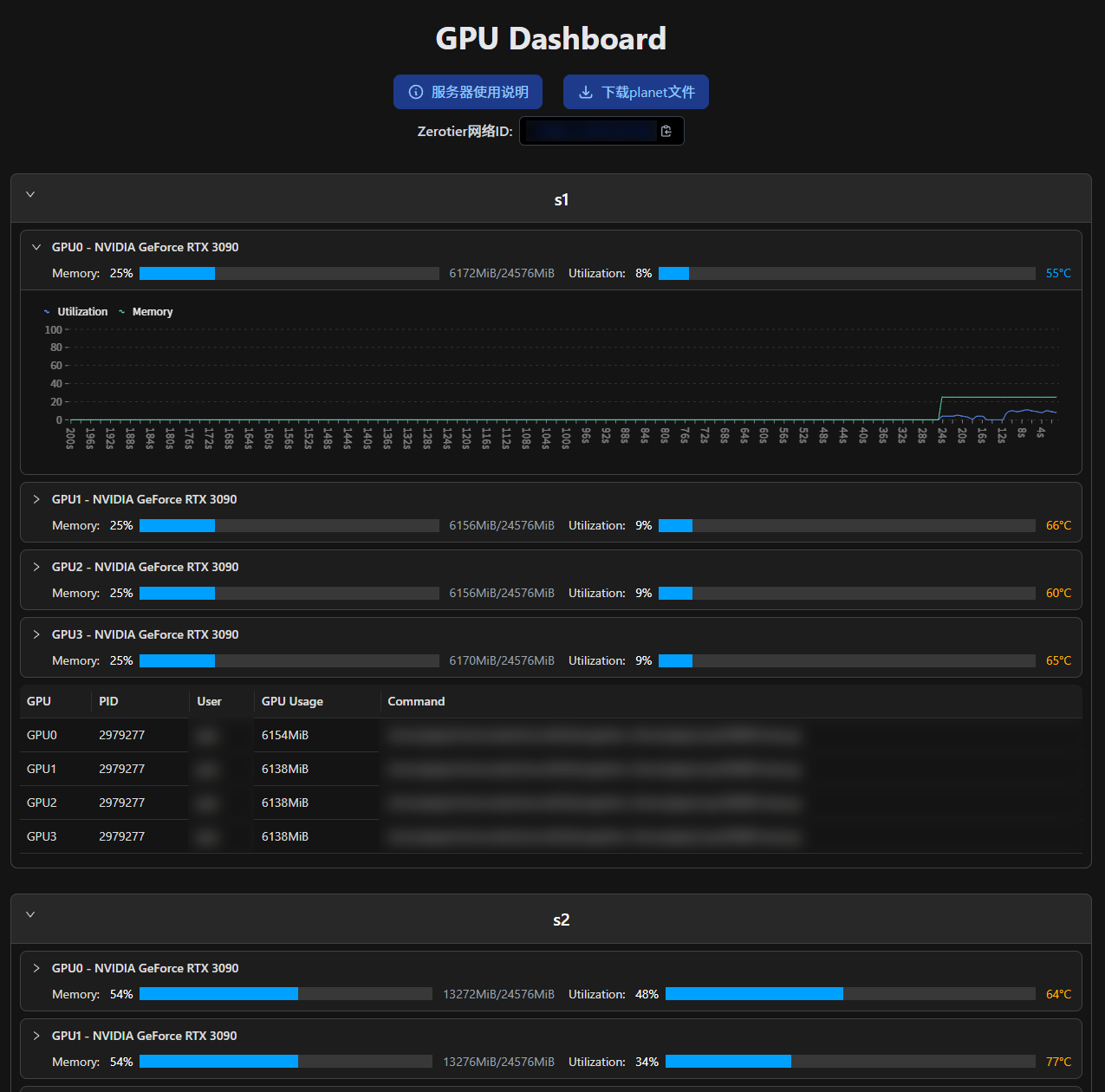
完成イメージ:
| Light | Dark |
|---|---|
![]() | ![]() |
旧ソリューション:SSHでnvidia-smiの出力を取得
以前のフロントエンドの経験はPythonでHTMLを生成することに留まっていたため、私の小さなマシンを使ってGPU監視ソリューションを構築しました:
- sshコマンドでnvidia-smiの出力を取得し、そこからVRAM使用量などの情報を解析します。
- GPUを使用しているプロセスのPIDに基づき、psコマンドでユーザーとコマンドを取得します。
- Pythonを使って上記の情報をMarkdownとして出力し、Markdownを使ってHTMLに変換します。
- cronを設定して上記の手順を毎分実行し、nginxでWebページのrootをHTMLがあるディレクトリに設定します。
対応するコードは以下の通りです:
# main.py
import subprocess
from copy import deepcopy
import json
from markdown import markdown
import time
from parse import parse, parse_proc
from gen_md import gen_md
num_gpus = {
"s1": 4,
"s2": 4,
"s3": 2,
"s4": 4,
"s5": 5,
}
def get1GPU(i, j):
cmd = ["ssh", "-o", "ConnectTimeout=2", f"s{i}", "nvidia-smi", f"-i {j}"]
try:
output = subprocess.check_output(cmd)
except subprocess.CalledProcessError as e:
return None, None
ts = int(time.time())
output = output.decode("utf-8")
ret = parse(output)
processes = deepcopy(ret["processes"])
ret["processes"] = []
for pid in processes:
cmd = [
"ssh",
f"s{i}",
"ps",
"-o",
"pid,user:30,command",
"--no-headers",
"-p",
pid[0],
]
output = subprocess.check_output(cmd)
output = output.decode("utf-8")
proc = parse_proc(output, pid[0])
ret["processes"].append(proc)
ret["processes"][-1]["pid"] = pid[0]
ret["processes"][-1]["used_mem"] = pid[1]
return ret, ts
def get_html(debug=False):
results = {}
for i in range(1, 6):
results_per_host = {}
for j in range(num_gpus[f"s{i}"]):
ret, ts = get1GPU(i, j)
if ret is None:
continue
results_per_host[f"GPU{j}"] = ret
results[f"s{i}"] = results_per_host
md = gen_md(results)
with open("html_template.html", "r") as f:
template = f.read()
html = markdown(md, extensions=["tables", "fenced_code"])
html = template.replace("{{html}}", html)
html = html.replace(
"{{update_time}}", time.strftime("%Y-%m-%d %H:%M", time.localtime())
)
if debug:
with open("results.json", "w") as f:
f.write(json.dumps(results, indent=2))
with open("results.md", "w", encoding="utf-8") as f:
f.write(md)
with open("index.html", "w", encoding="utf-8") as f:
f.write(html)
if __name__ == "__main__":
import sys
debug = False
if len(sys.argv) > 1 and sys.argv[1] == "debug":
debug = True
get_html(debug)
# parse.py
def parse(text: str) -> dict:
lines = text.split('\n')
used_mem = lines[9].split('|')[2].split('/')[0].strip()[:-3]
total_mem = lines[9].split('|')[2].split('/')[1].strip()[:-3]
temperature = lines[9].split('|')[1].split()[1].replace('C', '')
used_mem, total_mem, temperature = int(used_mem), int(total_mem), int(temperature)
processes = []
for i in range(18, len(lines) - 2):
line = lines[i]
if 'xorg/Xorg' in line:
continue
if 'gnome-shell' in line:
continue
pid = line.split()[4]
use = line.split()[7][:-3]
processes.append((pid, int(use)))
return {
'used_mem': used_mem,
'total_mem': total_mem,
'temperature': temperature,
'processes': processes
}
def parse_proc(text: str, pid: str) -> dict:
lines = text.split('\n')
for line in lines:
if not line:
continue
if line.split()[0] != pid:
continue
user = line.split()[1]
cmd = ' '.join(line.split()[2:])
return {
'user': user,
'cmd': cmd
}
# gen_md.py
def per_server(server: str, results: dict) -> str:
md = f'# {server}\n\n'
for gpu, ret in results.items():
used, total, temperature = ret['used_mem'], ret['total_mem'], ret['temperature']
md += f'<div class="oneGPU">\n'
md += f' <code>{gpu}: </code>\n'
md += f' <div class="g-container" style="display: inline-block;">\n'
md += f' <div class="g-progress" style="width: {used/total*100}%;"></div>\n'
md += f' </div>\n'
md += f' <code> {used:5d}/{total} MiB {temperature}℃</code>\n'
md += '</div>\n'
md += '\n'
if any([len(ret['processes']) > 0 for ret in results.values()]):
md += '\n| GPU | PID | User | Command | GPU Usage |\n'
md += '| --- | --- | --- | --- | --- |\n'
for gpu, ret in results.items():
for proc in ret['processes']:
md += f'| {gpu} | {proc["pid"]} | {proc["user"]} | {proc["cmd"]} | {proc["used_mem"]} MB |\n'
md += '\n\n'
return md
def gen_md(results: dict) -> dict:
md = ''
for server, ret in results.items():
md += per_server(server, ret)
return md
このソリューションにはいくつか明らかな欠点があり、更新頻度が低く、バックエンドの更新に完全に依存しているため、アクセスがなくてもデータを更新し続ける必要があります。
新ソリューション:フロントエンドとバックエンドの分離
実はずっとフロントエンドとバックエンドを分離したGPU監視を実装したくて、各サーバーでfastapiを実行し、リクエストがあるときに必要なデータを返すようにしていました。最近開発した南哪充電のおかげで、APIからデータを取得してページにレンダリングするフロントエンドを開発する自信がつきました。
fastapiバックエンド
最近偶然、nvitopがPythonからの呼び出しをサポートしていることに気づきました。ずっとコマンドでデータを可視化するしかないと思っていましたが。
いいですね、これで必要なデータをより便利に取得でき、コード量も大幅に削減できました! ( •̀ ω •́ )✧
ただ面倒な問題として、私たちの研究室のサーバーはルーターの下にあり、そのルーターは私の管理下にないため、SSHのポートしか転送されていません。
ここではfrpを使用し、各サーバーのAPIポートを学内の小さなマシンにマッピングすることにしました。ちょうど私の小さなマシンには多くのWebサービスが設定されているので、ドメインを通じてAPIにアクセスするのにも便利です。
以前は馬鹿でした、実は完全にSSH(ssh -fN -L 8000:localhost:8000 user@ip)を使ってポートマッピングができるので、コードからfrp関連の内容を削除し、Dockerを使ってWeb側を起動するのもより簡単になります。
# main.py
from fastapi import FastAPI, Request
from fastapi.middleware.cors import CORSMiddleware
from fastapi.middleware.gzip import GZipMiddleware
from fastapi.responses import JSONResponse
import uvicorn
from nvitop import Device, bytes2human
import os
import asyncio
from contextlib import asynccontextmanager
suburl = os.environ.get("SUBURL", "")
if suburl != "" and not suburl.startswith("/"):
suburl = "/" + suburl
frp_path = os.environ.get("FRP_PATH", "/home/peijie/Nvidia-API/frp")
if not os.path.exists(f"{frp_path}/frpc") or not os.path.exists(
f"{frp_path}/frpc.toml"
):
raise FileNotFoundError("frpc or frpc.toml not found in FRP_PATH")
@asynccontextmanager
async def run_frpc(app: FastAPI): # frp穿透到我的校内小主机
command = [f"{frp_path}/frpc", "-c", f"{frp_path}/frpc.toml"]
process = await asyncio.create_subprocess_exec(
*command,
stdout=asyncio.subprocess.DEVNULL,
stderr=asyncio.subprocess.DEVNULL,
stdin=asyncio.subprocess.DEVNULL,
close_fds=True,
)
try:
yield
finally:
try:
process.terminate()
await process.wait()
except ProcessLookupError:
pass
app = FastAPI(lifespan=run_frpc)
app.add_middleware(GZipMiddleware, minimum_size=100)
app.add_middleware(
CORSMiddleware,
allow_origins=["*"],
allow_credentials=True,
allow_methods=["*"],
allow_headers=["*"],
)
@app.get(f"{suburl}/count")
async def get_ngpus(request: Request):
try:
ngpus = Device.count()
return JSONResponse(content={"code": 0, "data": ngpus})
except Exception as e:
return JSONResponse(
content={"code": -1, "data": None, "error": str(e)}, status_code=500
)
@app.get(f"{suburl}/status")
async def get_status(request: Request):
try:
ngpus = Device.count()
except Exception as e:
return JSONResponse(
content={"code": -1, "data": None, "error": str(e)}, status_code=500
)
idx = request.query_params.get("idx", None)
if idx is not None:
try:
idx = idx.split(",")
idx = [int(i) for i in idx]
for i in idx:
if i < 0 or i >= ngpus:
raise ValueError("Invalid GPU index")
except ValueError:
return JSONResponse(
content={"code": 1, "data": None, "error": "Invalid GPU index"},
status_code=400,
)
else:
idx = list(range(ngpus))
process_type = request.query_params.get("process", "")
if process_type not in ["", "C", "G", "NA"]:
return JSONResponse(
content={
"code": 1,
"data": None,
"error": "Invalid process type, choose from C, G, NA",
},
status_code=400,
)
try:
devices = []
processes = []
for i in idx:
device = Device(i)
devices.append(
{
"idx": i,
"fan_speed": device.fan_speed(),
"temperature": device.temperature(),
"power_status": device.power_status(),
"gpu_utilization": device.gpu_utilization(),
"memory_total_human": f"{round(device.memory_total() / 1024 / 1024)}MiB",
"memory_used_human": f"{round(device.memory_used() / 1024 / 1024)}MiB",
"memory_free_human": f"{round(device.memory_free() / 1024 / 1024)}MiB",
"memory_utilization": round(
device.memory_used() / device.memory_total() * 100, 2
),
}
)
now_processes = device.processes()
sorted_pids = sorted(now_processes)
for pid in sorted_pids:
process = now_processes[pid]
if process_type == "" or process_type in process.type:
processes.append(
{
"idx": i,
"pid": process.pid,
"username": process.username(),
"command": process.command(),
"type": process.type,
"gpu_memory": bytes2human(process.gpu_memory()),
}
)
return JSONResponse(
content={
"code": 0,
"data": {"count": ngpus, "devices": devices, "processes": processes},
}
)
except Exception as e:
return JSONResponse(
content={"code": -1, "data": None, "error": str(e)}, status_code=500
)
if __name__ == "__main__":
port = int(os.environ.get("PORT", "8000"))
uvicorn.run(app, host="127.0.0.1", port=port, reload=False)
コードには3つの環境変数があります:
SUBURL: APIのパスを設定するために使用します。例えば、サーバー名などを指定します。FRP_PATH: frpとその設定があるパスで、APIのあるポートを学内の小さなマシンにマッピングするために使用します。もし皆さんのサーバーが直接アクセス可能なら、関連する関数を削除し、最後の行を0.0.0.0に変更して、IP(または別途各サーバーにドメインを設定)でアクセスすればOKです。PORT: APIがあるポート。
ここでは2つのエンドポイントしか書いていません 、実際に使ったのも1つだけです
/count: GPUの数を返します。/status: 具体的なステータス情報を返します。返されるデータは以下の例を参照してください。ただ、ここでは2つのオプションパラメータを追加しました:idx: カンマで区切られた数字で、指定されたGPUのステータスを取得できます。process: 返されるプロセスをフィルタリングするために使用します。使用時はCに設定し、計算タスクのみを表示します。
{
"code": 0,
"data": {
"count": 2,
"devices": [
{
"idx": 0,
"fan_speed": 41,
"temperature": 71,
"power_status": "336W / 350W",
"gpu_utilization": 100,
"memory_total_human": "24576MiB",
"memory_used_human": "18653MiB",
"memory_free_human": "5501MiB",
"memory_utilization": 75.9
},
{
"idx": 1,
"fan_speed": 39,
"temperature": 67,
"power_status": "322W / 350W",
"gpu_utilization": 96,
"memory_total_human": "24576MiB",
"memory_used_human": "18669MiB",
"memory_free_human": "5485MiB",
"memory_utilization": 75.97
}
],
"processes": [
{
"idx": 0,
"pid": 1741,
"username": "gdm",
"command": "/usr/lib/xorg/Xorg vt1 -displayfd 3 -auth /run/user/125/gdm/Xauthority -background none -noreset -keeptty -verbose 3",
"type": "G",
"gpu_memory": "4.46MiB"
},
{
"idx": 0,
"pid": 2249001,
"username": "xxx",
"command": "~/.conda/envs/torch/bin/python -u train.py",
"type": "C",
"gpu_memory": "18618MiB"
},
{
"idx": 1,
"pid": 1741,
"username": "gdm",
"command": "/usr/lib/xorg/Xorg vt1 -displayfd 3 -auth /run/user/125/gdm/Xauthority -background none -noreset -keeptty -verbose 3",
"type": "G",
"gpu_memory": "9.84MiB"
},
{
"idx": 1,
"pid": 1787,
"username": "gdm",
"command": "/usr/bin/gnome-shell",
"type": "G",
"gpu_memory": "6.07MiB"
},
{
"idx": 1,
"pid": 2249002,
"username": "xxx",
"command": "~/.conda/envs/torch/bin/python -u train.py",
"type": "C",
"gpu_memory": "18618MiB"
}
]
}
Vueで実装されたフロントエンド
ここでは手抜きをします 、実はできないだけです、とりあえず元々Pythonで生成していたUIをそのままコピーしました。
<!-- App.vue -->
<script setup>
import GpuMonitor from './components/GpuMonitor.vue';
let urls = [];
let titles = [];
for (let i = 1; i <= 5; i++) {
urls.push(`https://xxxx/status?process=C`);
titles.push(`s${i}`);
}
const data_length = 100; // GPU利用率历史数据长度,用于绘制折线图(先画个饼)
const sleep_time = 500; // 间隔多久刷新一次数据,单位毫秒
</script>
<template>
<h3><a href="https://www.do1e.cn/posts/citelab/server-help">サーバー使用説明</a></h3>
<GpuMonitor v-for="(url, index) in urls" :key="index" :url="url" :title="titles[index]" :data_length="data_length" :sleep_time="sleep_time" />
</template>
<style scoped>
body {
margin-left: 20px;
margin-right: 20px;
}
</style>
<!-- components/GpuMonitor.vue -->
<template>
<div>
<h1>{{ title }}</h1>
<article class="markdown-body">
<div v-for="device in data.data.devices" :key="device.idx">
<b>GPU{{ device.idx }}: </b>
<b>VRAM: </b>
<div class="g-container">
<div class="g-progress" :style="{ width: device.memory_utilization + '%' }"></div>
</div>
<code style="width: 25ch;">{{ device.memory_used_human }}/{{ device.memory_total_human }} {{ device.memory_utilization }}%</code>
<b>利用率: </b>
<div class="g-container">
<div class="g-progress" :style="{ width: device.gpu_utilization + '%' }"></div>
</div>
<code style="width: 5ch;">{{ device.gpu_utilization }}%</code>
<b>温度: </b>
<code style="width: 4ch;">{{ device.temperature }}°C</code>
</div>
<table v-if="data.data.processes.length > 0">
<thead>
<tr><th>GPU</th><th>PID</th><th>User</th><th>Command</th><th>GPU Usage</th></tr>
</thead>
<tbody>
<tr v-for="process in data.data.processes" :key="process.pid">
<td>GPU{{ process.idx }}</td>
<td>{{ process.pid }}</td>
<td>{{ process.username }}</td>
<td>{{ process.command }}</td>
<td>{{ process.gpu_memory }}</td>
</tr>
</tbody>
</table>
</article>
</div>
</template>
<script>
import axios from 'axios';
import { Chart, registerables } from 'chart.js';
Chart.register(...registerables);
export default {
props: {
url: String,
title: String,
data_length: Number,
sleep_time: Number
},
data() {
return {
data: {
code: 0,
data: {
count: 0,
devices: [],
processes: []
}
},
gpuUtilHistory: {}
};
},
mounted() {
this.fetchData();
this.interval = setInterval(this.fetchData, this.sleep_time);
},
beforeDestroy() {
clearInterval(this.interval);
},
methods: {
fetchData() {
axios.get(this.url)
.then(response => {
if (response.data.code !== 0) {
console.error('Error fetching GPU data:', response.data);
return;
}
this.data = response.data;
for (let device of this.data.data.devices) {
if (!this.gpuUtilHistory[device.idx]) {
this.gpuUtilHistory[device.idx] = Array(this.data_length).fill(0);
}
this.gpuUtilHistory[device.idx].push(device.gpu_utilization);
this.gpuUtilHistory[device.idx].shift();
}
})
.catch(error => {
console.error('Error fetching GPU data:', error);
});
}
}
};
</script>
<style>
.g-container {
width: 200px;
height: 15px;
border-radius: 3px;
background: #eeeeee;
display: inline-block;
}
.g-progress {
height: inherit;
border-radius: 3px 0 0 3px;
background: #6e9bc5;
}
code {
display: inline-block;
text-align: right;
background-color: #ffffff !important;
}
</style>
// main.js
import { createApp } from 'vue'
import App from './App.vue'
createApp(App).mount('#app')
<!DOCTYPE html>
<html lang="">
<head>
<meta charset="UTF-8">
<link rel="icon" href="/favicon.ico">
<meta name="viewport" content="width=device-width, initial-scale=1.0">
<link rel="stylesheet" href="https://cdnjs.cloudflare.com/ajax/libs/github-markdown-css/5.2.0/github-markdown.min.css">
<title>研究室GPU使用状況</title>
</head>
<body>
<div id="app"></div>
<script type="module" src="/src/main.js"></script>
</body>
</html>
npm run build で無事リリースファイルを取得し、nginxのrootをそのフォルダに設定すれば完成です。
実現した効果: https://nvtop.njucite.cn/
UIはまだ同じくらいダサいですが、少なくとも動的に更新できるようになりました、やったね!
新しいUI
まずはパイをここに描いておきます、習得して帰ってきたら。( ̄_, ̄ )
より美しいUI(これが達成されたかどうかも私にはわかりません、私はデザインの廃人です)
利用率の折れ線グラフを追加
ダークモードをサポート
2024/12/27:Next.jsを使って上記のTODOをすべて完了しました。さらに、一部のホストを非表示にする機能も実装し、非表示にしたホストをクッキーとして保存することで、次回開いたときに同じ状態を表示できるようにしました。
2025/03/11:Next.jsでメールログイン機能を更新し、認証されたユーザーのみがアクセスできるようにしました。
2025/09/18:コードを整理しました。現在、機能はほぼ完全であり、他の人が簡単にデプロイできるようになっています。
完全なコードはこちら: